Microsoft Access is still supported. Your business may still have outgrown the system built with it. Here is how to judge what needs to change, what is worth keeping and what a sensible next step could look like.
If your business runs on an Access database, an article announcing its decline can make an ordinary working day feel suddenly precarious. Should you replace it? Can you keep the records? Will the new system still produce the report everyone needs on a Friday?
Those are sensible questions. Start with what your team needs from the system, then look at which parts need attention.
This note was prompted by Tony Phillips’s “Why Microsoft Access is dying (and what is replacing it)” on How-To Geek. Here is our practical view of the choices facing a business with an existing database.
Is Microsoft Access being discontinued?
Microsoft Access remains a supported product. As checked on 14 October 2026, Microsoft offers Access through qualifying Microsoft 365 subscriptions and as Access 2024. Its published Access 2024 lifecycle extends into 2029. A particular older version can reach the end of support while the product itself continues. See Microsoft’s current Access product page and Access 2024 lifecycle.
That gives you room to assess your own system. It does not tell you whether its design, deployment or maintenance still suits the business. Check the version you actually run, who supports it and what happens if it stops working.
First, separate the screens from the records
An Access system can contain several things: the tables holding your records, the forms people fill in, queries that find or calculate information, reports and code that applies business rules.
They do not all have to live in one file. Microsoft describes both split Access databases and Access connected to a database server. In a split arrangement, each user can have a local front end containing the interface, linked to shared data.
This distinction matters when planning a change. A familiar set of screens might still be useful even if the data needs a different home. Equally, moving the data alone will not make a busy form easier to use on a phone.
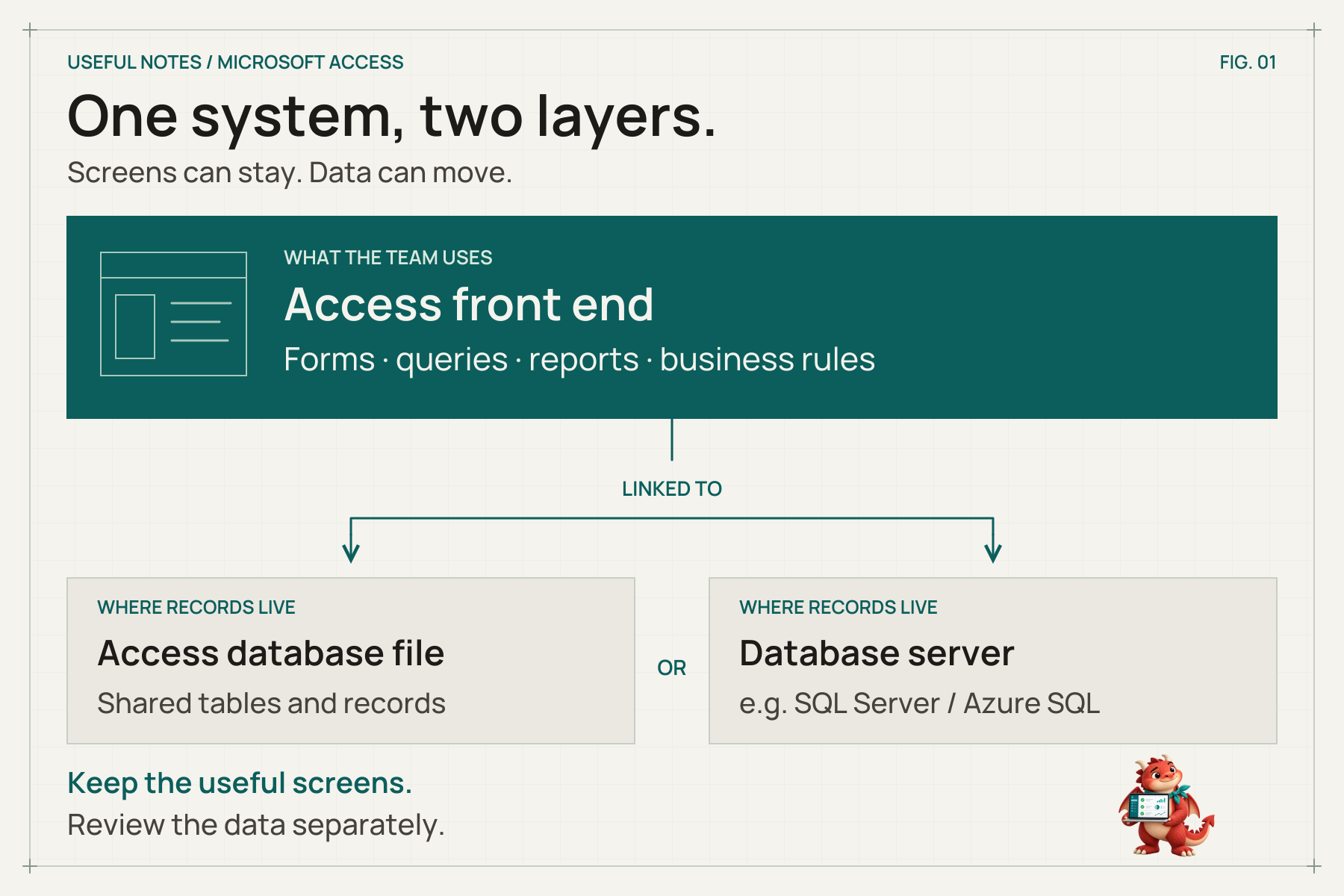
The screens people use and the place records are stored can change separately
When is it time to review an Access database?
Look for the places where the system makes ordinary work harder. Its age is useful background; the daily friction tells you what to investigate.
The team needs to work somewhere else
Access is a Windows desktop application. If people need to update jobs from a Mac, iPad, warehouse floor or customer’s premises, decide what access they actually need. A remote Windows session may suit some office tasks; a purpose-built browser or mobile interface may suit others. Microsoft’s deployment guidance includes remote desktop and alternative data-storage approaches.
Ask someone to demonstrate one real task away from their desk. Finding a delivery address and recording an inspection are different jobs. They may need different screens, permissions and offline behaviour.
The network has become part of the problem
Multi-user Access is possible, but deployment matters. Microsoft warns against using a split Access database over a wide-area network, including typical remote connections, or Azure file shares because of performance and corruption risks. It recommends alternatives in the same deployment guide.
Simply putting the live file in a synced folder is not a reliable shortcut to shared online working. Microsoft also advises against opening Access databases from OneDrive or a SharePoint document library. A SharePoint list used as a data source is a different arrangement.
You are approaching the file limit
Microsoft’s Access specifications set a 2GB limit, less system overhead, for each Access database file. That is not a universal limit on the amount of data an Access front end can work with: it can link to other files or a database server.
Check what is growing before choosing a replacement. Records, embedded documents and duplicated data suggest different remedies. A smaller, well-designed database may be perfectly adequate; a growing attachment archive may need a different storage approach.
People need different levels of access
Modern .accdb files do not provide the old Access user-level security feature. File encryption and a password also do not decide which individual records each person may see. Microsoft outlines these limits and server-based alternatives.
Write down the actual rules: perhaps a visiting engineer should see assigned jobs but not everyone’s payment details. Those rules need to be enforced in the system that controls the data. Hiding a button or filtering a form is not enough on its own.
Too much depends on one person
Can someone explain the monthly report, change a rate or restore a backup without calling the original creator? Missing documentation and unclear ownership can make any system difficult to maintain, including a newly built one.
Before replacing anything, preserve the editable source files and document the important rules. Our note on backups you can actually find again is a useful place to start with recovery.
What can replace Microsoft Access?
There is no single best replacement. Compare the complete job: entering records, finding information, handling exceptions, producing reports and looking after the system afterwards.
Keep Access and improve the existing application
If the team works happily on Windows, the system is maintainable and the process is fairly contained, a review may lead to smaller improvements: clearer forms, better validation, documented routines or a more appropriate deployment.
A dependable internal tool can be worth keeping. Give it an owner, a recovery plan and a sensible maintenance budget.
Keep the interface and move the data
Access can remain the front end while SQL Server or Azure SQL stores the records. Microsoft publishes guidance for this migration. This can preserve useful forms and reports while changing how the data is managed.
It still needs design and testing. Queries, data types, permissions and performance may need attention, and the database server needs someone to manage it. A familiar interface does not mean the work behind it is unchanged.
Use Power Apps and Dataverse
Power Apps can provide web and mobile interfaces, with Dataverse holding shared data. Power Automate can handle workflows and Power BI can provide reporting. Microsoft also documents a hybrid approach that keeps Access alongside Dataverse.
Treat Power Platform as an option to assess, rather than a one-click successor. Moving tables does not automatically recreate every form, report and VBA routine. Check licences, connectors, storage, support and any offline requirements against the actual application. Existing Microsoft 365 subscriptions do not necessarily cover the complete solution.
Choose a simpler shared tool or an existing product
For a straightforward tracker, Microsoft Lists may be worth evaluating. App-building platforms such as Airtable, Google AppSheet and Zoho Creator offer other approaches. A ready-made product for your particular activity may cover the work already.
Try the awkward case during evaluation: a cancellation, a duplicate record, an approval reversed or a report with an unusual calculation. Check data export, permissions and ongoing costs too. A good-looking first screen is only part of the decision.
Build software around the process
Bespoke software becomes worth considering when the workflow is distinctive or existing products leave the team joining everything together by hand.
Consider an illustrative service-job workflow: an office records jobs in Access while engineers return handwritten visit notes. The engineers could record each visit once in a suitable app, ready for the office to review in the same system.
The result could be a Windows or macOS desktop application, a web application, an iOS or Android app, or a combination. The choice depends on where the work happens, connectivity and the tools it must fit alongside. Our practical software examples show more possibilities.
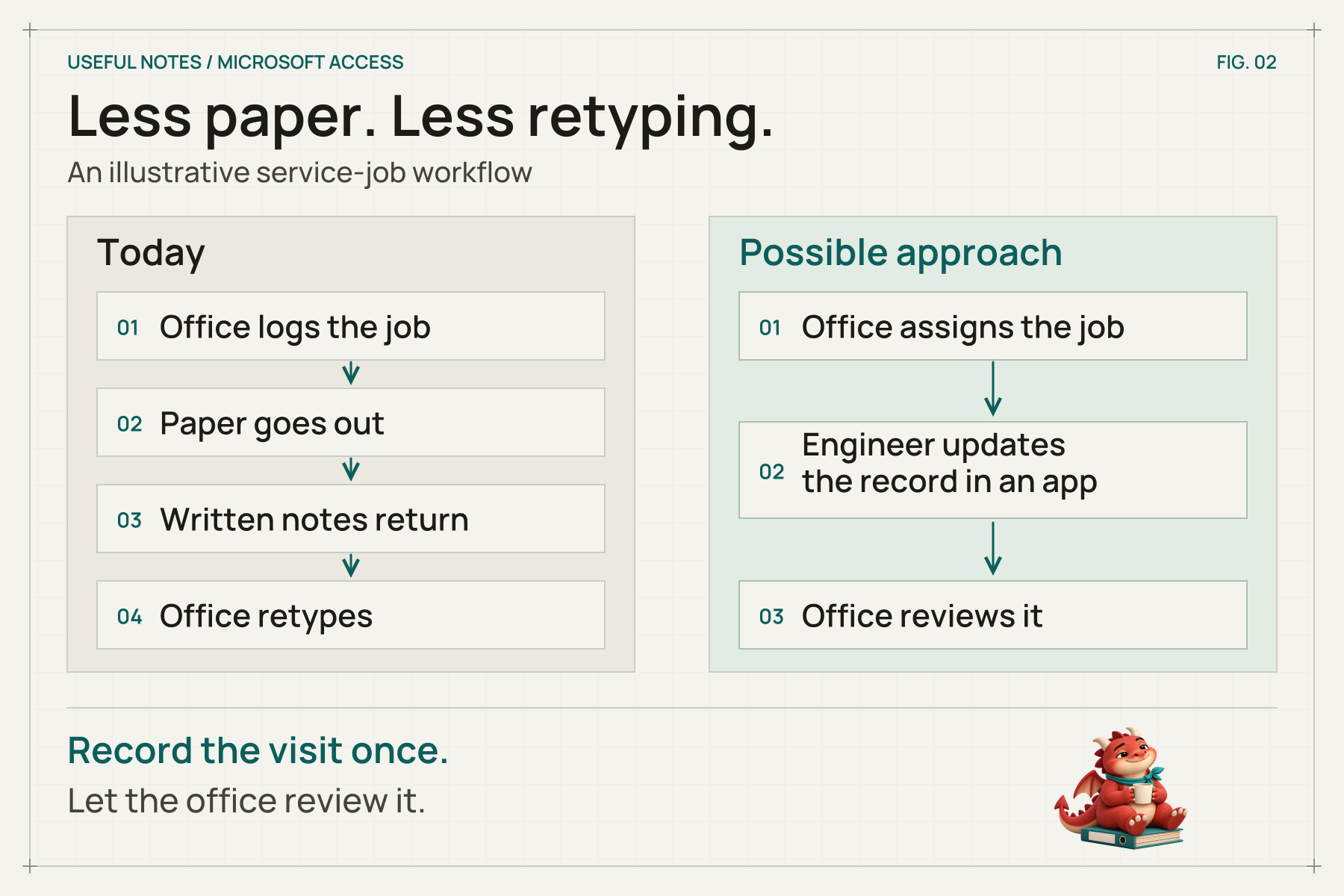
An illustrative change: record the visit once, then let the office review it.
How do you move on without losing what works?
The existing database contains decisions as well as records. A slightly odd checkbox might control an important invoice rule. A report used once a year may be essential. Find those things before agreeing what to rebuild.
1. Map one complete piece of work
Follow a normal job from the first enquiry to the final report. Include the spreadsheets, emails and paper used alongside Access. Ask the people doing the work where they retype, check, wait or chase.
Capture what a better result would look like: fewer duplicate entries, a clear view of outstanding work or the ability to finish a task on site.
2. Take stock of the data and the rules
List the tables, linked systems, reports and calculations that matter. Identify duplicates and missing information. Agree what history needs to remain available and what can be archived.
Record who should see and change each type of information. Include attachments, exports and integrations; they are easy to overlook when attention is on the main screens.
3. Prove the difficult part early
Try a small working example with representative, appropriately protected test data. Include an exception, a real report and the devices people will use.
Make success specific. “The coordinator can see all unassigned jobs without combining three lists” is something people can check together.
4. Rehearse the move
Test the migration on a copy. Compare record counts, important totals, relationships and sample documents. Ask staff to check familiar cases as well as the technical results.
Plan which system is authoritative during the change, how any final updates will be transferred, who can approve the switch and how to recover if a check fails. Uncontrolled editing in two places creates a new reconciliation job.
5. Plan for the day after launch
Agree training, support, documentation, backups and ownership before the switch. Keep the old records accessible where needed, with clear labels so nobody accidentally continues working in the retired system.
Compare the full running cost over several years: licences, hosting, maintenance, training and the time spent on manual work. Custom software needs upkeep too. Ask how you would export your data or change supplier later.
A few questions we would ask first
Can we keep the data we already have?
Often, but it needs inspection. Tables and attachments may need conversion or cleaning; forms, reports and code may need separate work. A sample migration with agreed checks is more useful than a promise to move everything unchanged.
Can we replace Access with Excel?
For a genuinely simple list or calculation, a spreadsheet may be enough. If the current application manages related records, permissions and a shared process, exporting everything into worksheets may bring back the very workarounds you wanted to remove.
Does moving away from Access mean moving to the cloud?
No. Hosting and interface choices are separate decisions. A server-backed application can run on infrastructure you manage, and a custom desktop application can keep local data. Shared access, offline work, recovery and maintenance still need to be designed.
How much will replacing an Access database cost?
The size of the file is a poor guide. The number of workflows, rules, integrations, reports and migration checks matters much more. Start with a review of the existing system and a defined first phase so any estimate has something solid behind it.
Start with the bit that is making work difficult
You do not need to decide on a platform before speaking to us. Tell us what the database does, who relies on it and where it gets awkward. Keep passwords and live customer records out of the initial enquiry; a blank form or made-up example is enough to begin.
We can help explore software shaped around your work, including a staged move from an existing system. Our note on what to bring to a first conversation will help you prepare. When you are ready, tell us about the awkward bit.
Source acknowledgement: Tony Phillips’s How-To Geek article, linked near the opening, prompted this discussion. Technical details were checked against the linked Microsoft documentation on 14 October 2026. The assessment questions and suggested planning approach are our own.