Your tasks, notes and plans, in one place.
Bring everyday tasks, bigger projects and the notes behind them together. A private Windows app to help you see what needs doing and get on with it.
Windows desktop · 64-bit Intel or AMD PC · Your work stays on your computer
A little less scattered.
Choose the tasks you want in front of you. Focus brings them together while their Groups, dates and details stay intact.
-
Pick your next steps.
Bring a manageable selection of tasks into Focus without moving them out of their Groups.
-
Keep the context.
See dates, tags, time estimates and mini-step progress alongside the task.
-
Work offline.
Your tasks and notes are stored on your computer, ready when you need them.
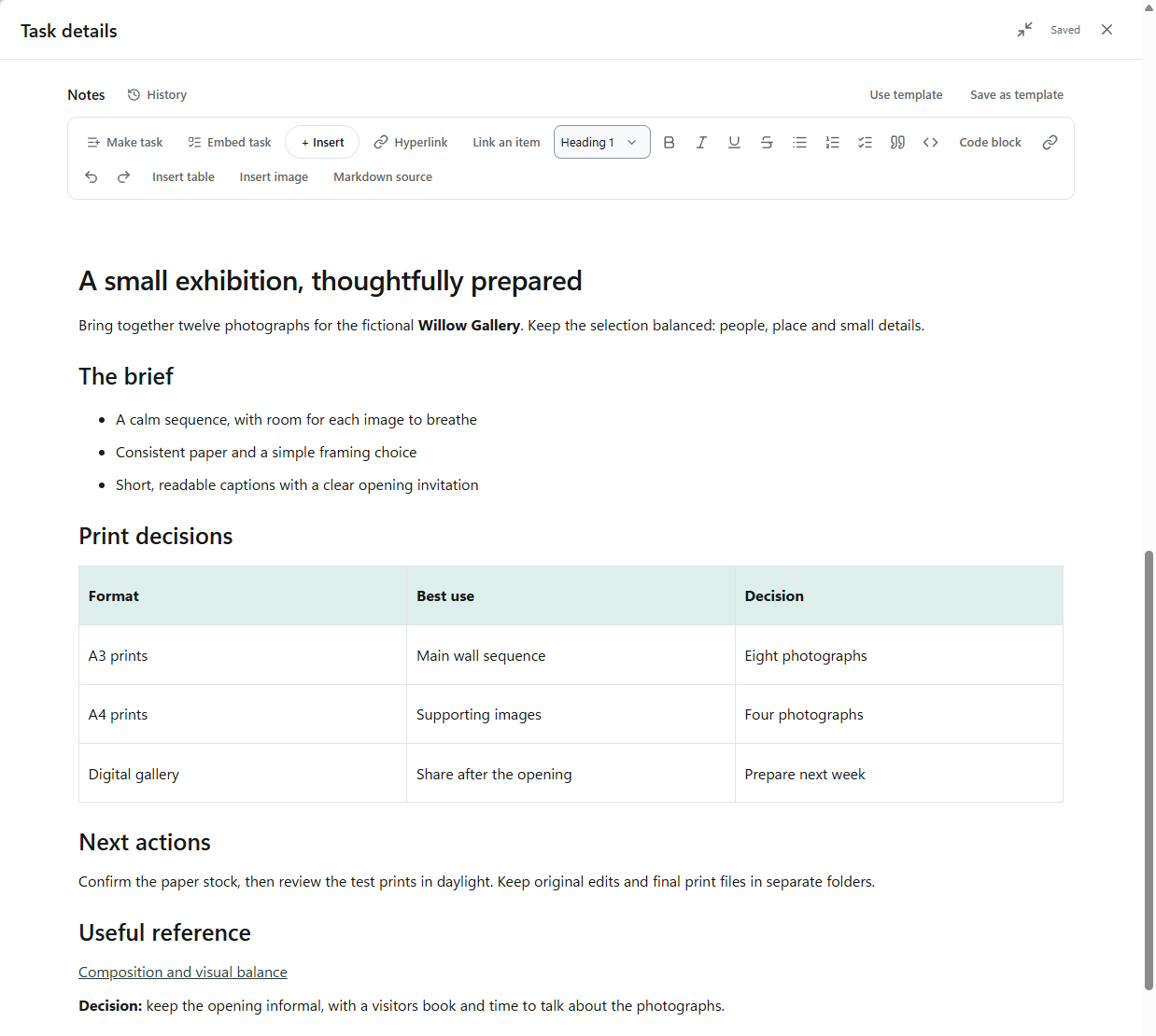
A task can hold the whole idea.
Keep the brief, working notes and useful references with the task they belong to. When you come back to it, the thinking is there too.
-
Room to think.
Use headings, lists, tables, images and links to shape your notes.
-
Small steps. Clear progress.
Break a bigger task into mini-steps and tick them off as you go.
-
A useful starting point.
Save notes as templates and reuse a layout for the next brief, checklist or project.
A place for every part of life.
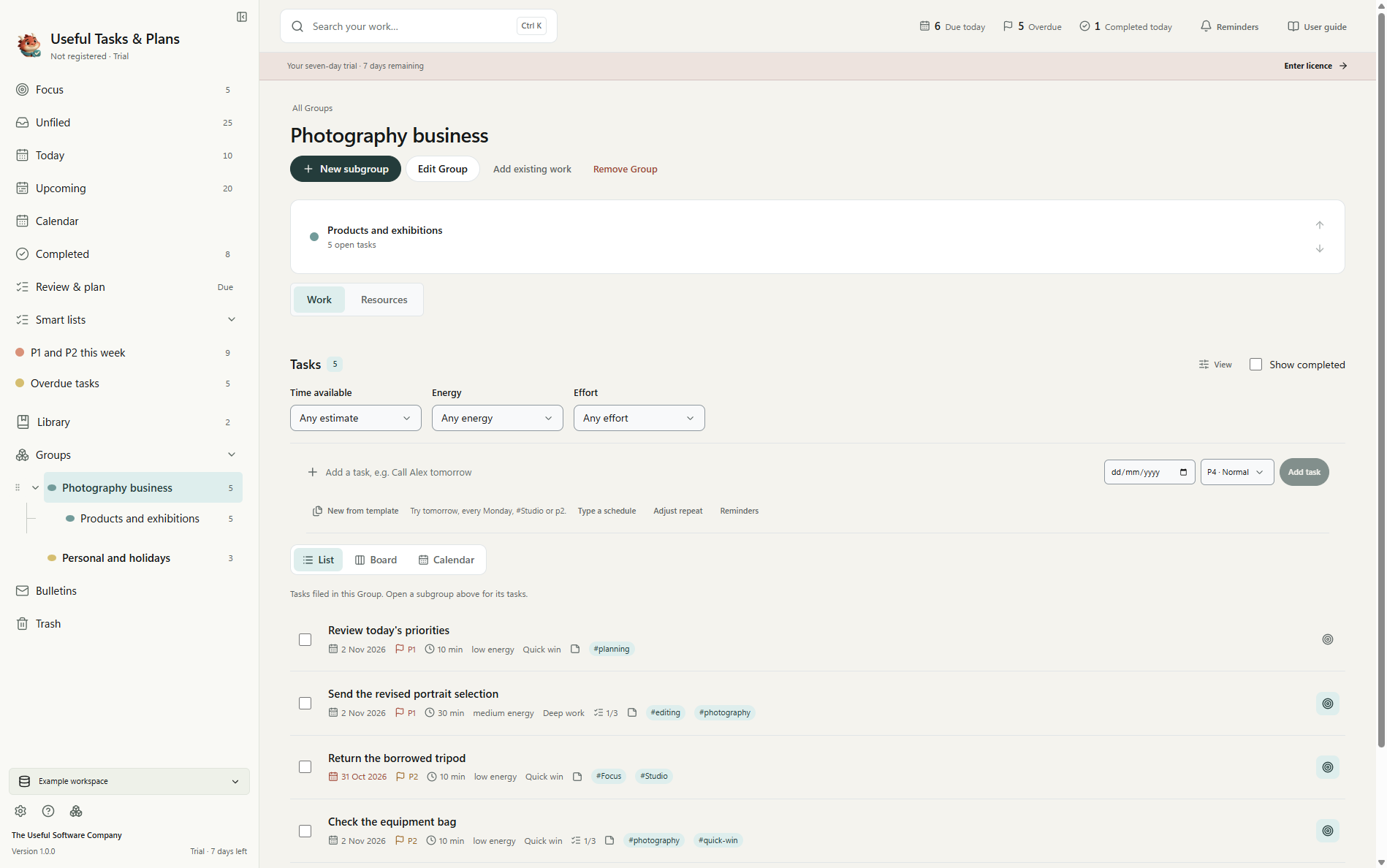
A client project, the jobs at home, an idea for later. Give each a Group, then add subgroups wherever a little more structure helps.
- Build the structure you need.
- Organise work by client, project or part of life. Keep related tasks in their own Groups and subgroups.
- Keep supporting material nearby.
- Each Group has a place for its work and a Resources view for the links, snippets and files that support it.
Three ways to view the work within a Group.
- List
- Board
- Calendar
A day has only so much room.
Use your own time estimates to check the day's workload, then switch to the calendar for the dates ahead. A little perspective before you take on the next thing.
Useful things, kept within reach.
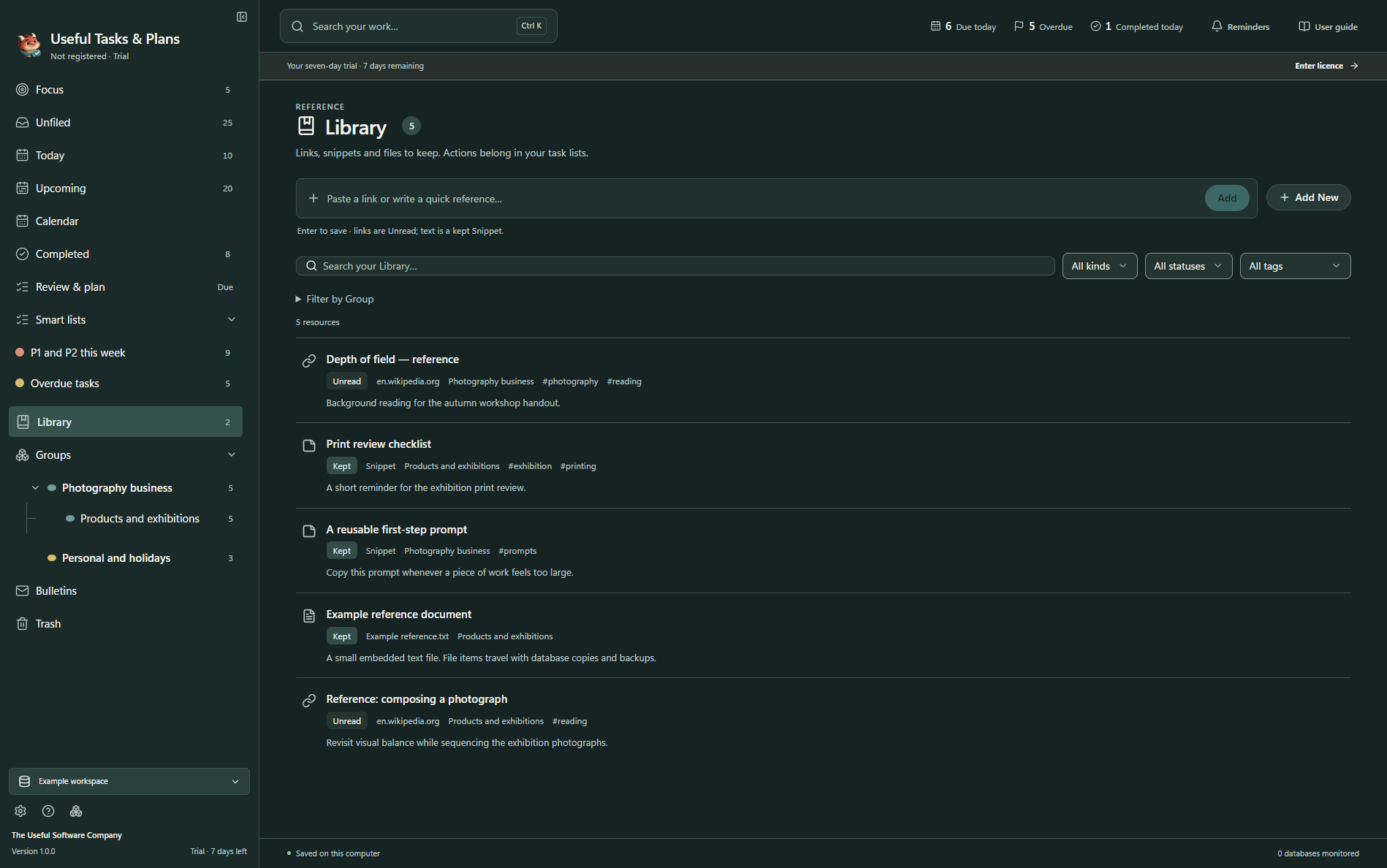
Save the article, keep the checklist, hold on to the file. Your Library gives reference material a place alongside the work it supports.
Reference material has its own place.
Use Unread and Kept statuses, tags and Groups to organise what you save. Library resources stay separate from your unfinished task counts.
-
Links to come back to.
Keep useful web references with a description, tags and a Group.
-
Snippets worth keeping.
Save checklists, reusable text and little things you'll want again.
-
Files that stay with the work.
Store reference files inside the database, so they travel with database copies and backups.
Your work. Your computer.
Keep your tasks, notes and reference files in a local database, with backups and built-in help close at hand.
- A file you can find.
- Choose where to save your .utp database. It holds your tasks, notes and embedded files.
- A way back.
- Create backups from Settings → Backup & import. Keep a separate copy somewhere safe.
- Help when you need it.
- Search the built-in User guide, even offline. Press F1 from the app to open it.
A few useful answers.
Which computers does it run on?
This release is a Windows desktop app for 64-bit Intel or AMD PCs. It does not include Mac, mobile or browser versions.
Does it need an internet connection?
Everyday local work, embedded files and an activated Version 1 licence work offline. Internet access is needed for downloads, purchases, update checks and online features such as fetching link titles.
Does it sync between devices?
Version 1 does not provide automatic multi-device synchronisation or simultaneous editing. A database can have one writer at a time.
If you move a database using a file-sync service, close it in the app and let the file finish syncing before opening it elsewhere.
Can I start with example data?
Yes. When you create a database, choose example data for a look around or start with an empty database for your own work.
How long is the trial?
The trial lasts seven days. Try the app with the example data or use your own tasks, notes and projects to see how it fits the way you work.
Is £49 a subscription?
No. It is one payment of £49 GBP, plus applicable taxes, for a perpetual Version 1 licence. Every Version 1.x update is included.
A future major Version 2 may be a separate paid upgrade.
How do I activate after buying?
Keep your licence email safely. In the app, open Settings → Support & licence, paste the complete key into Licence key, then choose Activate licence.
Where can I get help?
Press F1 or choose User guide in the app for searchable help. You can also email hello@usefulsoftware.co. Include your app version, what you were doing and any error message.
A clearer plan. A little more headspace.
Try Useful Tasks & Plans for seven days. Bring a few real tasks, or explore the example data first.