
One practice.
A clearer picture.
A bespoke Windows application bringing client work, correspondence and reporting into one connected workspace.
Built for a medium-sized accountancy firm, the Complete Accounts Integration System gives partners a view across the practice and accountants the context to keep work moving.
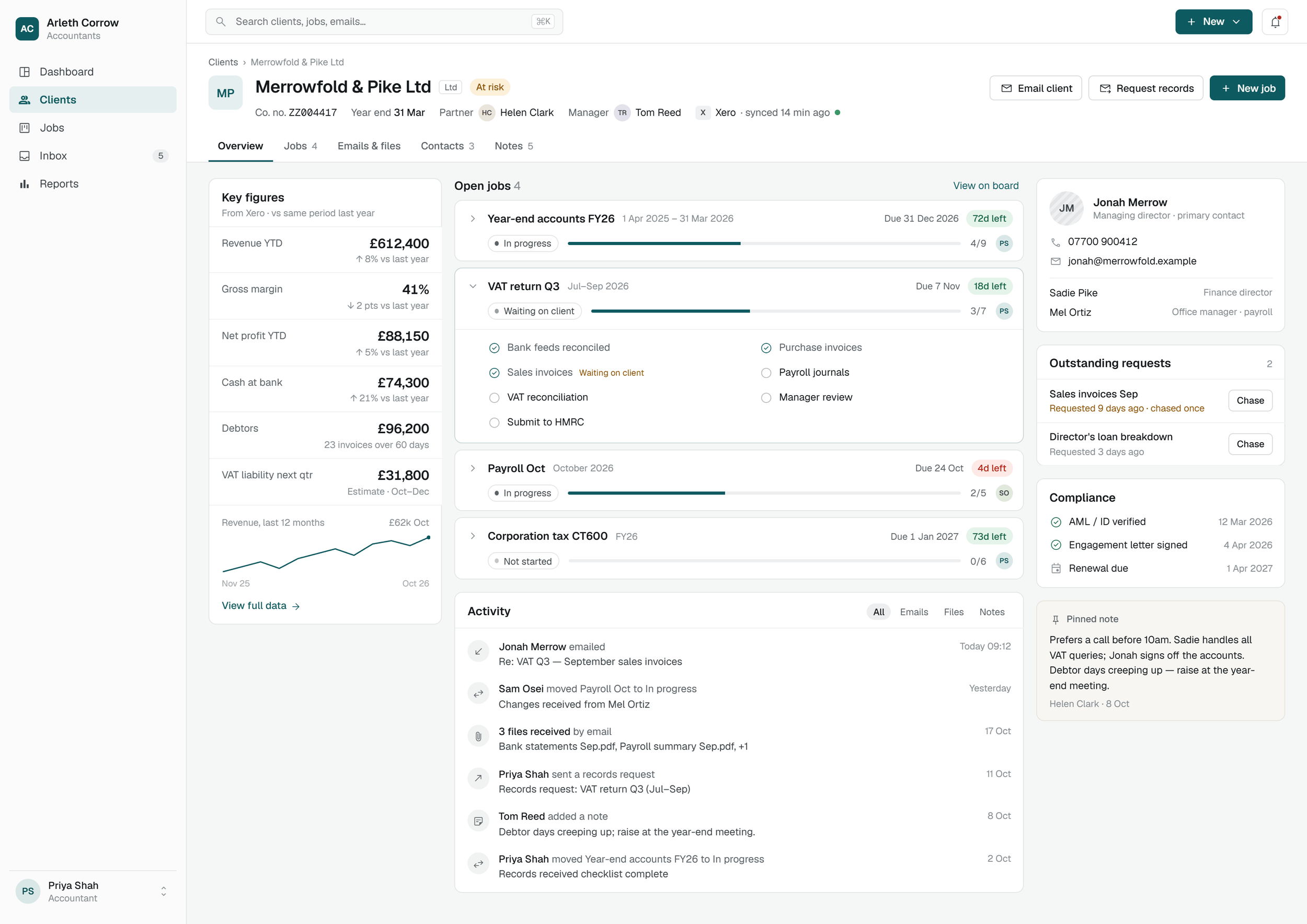
The firm is unnamed. Organisation, client and personal details in the project screens have been anonymised.
The work was connected.
The tools weren’t.
The firm was managing much of its day-to-day work through spreadsheets, shared drives and mail folders. The information existed, but understanding a job could mean piecing together records from several places.
Partners needed a central view of work already under way. Accountants needed to pick up a colleague’s jobs when they were away. The firm also wanted its core work connected with reporting and tracking.
Our brief was to build an application around those needs, carrying the context of the work from one person and one stage to the next.
See the practice.
Bring jobs, ownership, deadlines and outstanding work into a shared picture for partners.
Pick up the thread.
Give accountants the job details and correspondence they need when a colleague is away.
Connect the detail.
Keep reporting and tracking close to the client work they describe.
A place to understand
what happens next.
A useful client workspace needs more than a name and a list of tasks. It needs the context around them: who is responsible, what is outstanding, what has already been said and where attention is needed.
The workbench brings open jobs, requests, contacts and recent activity into the same view, alongside financial context. Someone opening a client can see the work and the information around it.
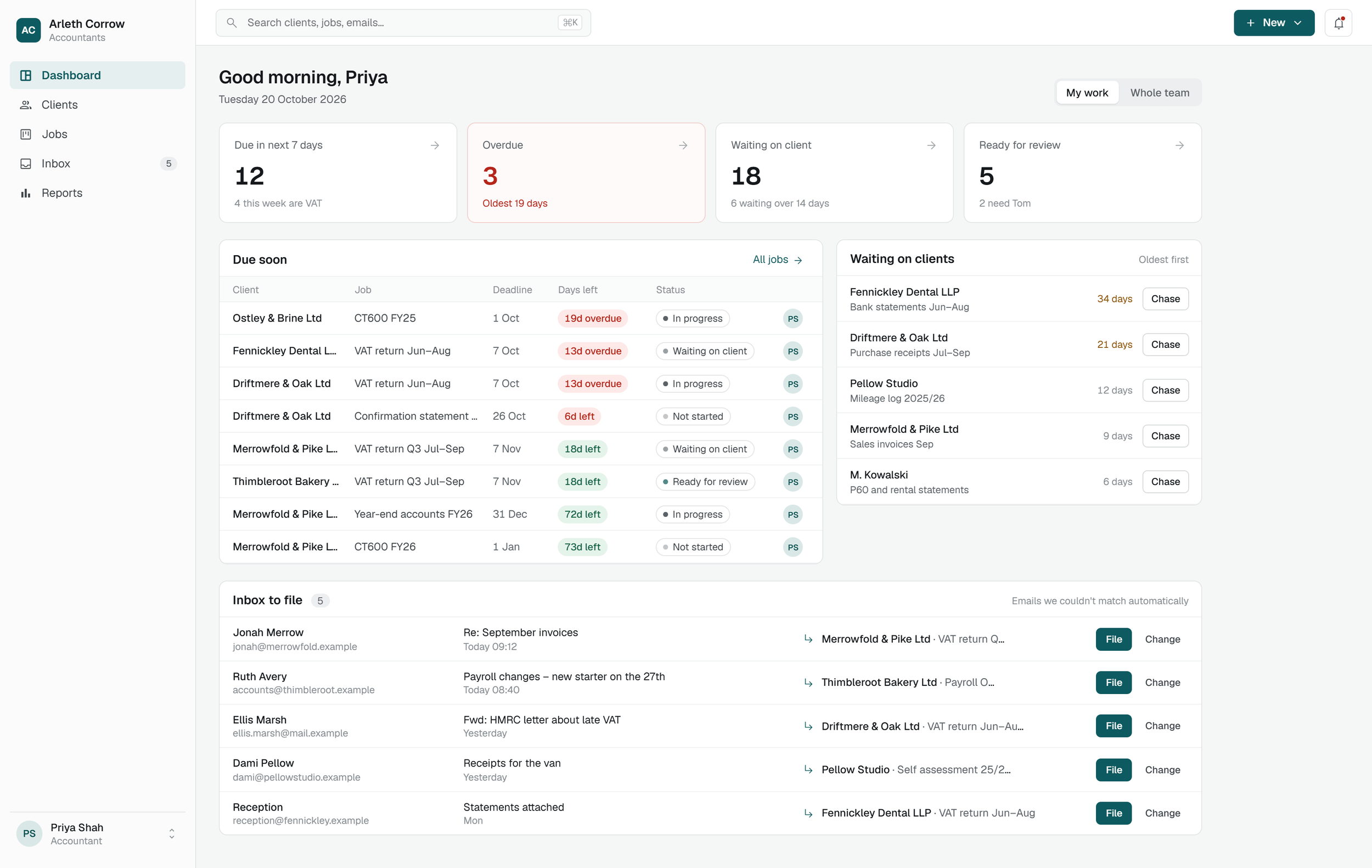
A starting point for the day.
The dashboard gathers approaching deadlines, overdue work, client requests and correspondence awaiting filing. It gives the accountant a route into the work that needs attention.
Context that another person can follow.
Within the client workbench, progress, requests and activity sit together. That supports the original brief: helping a colleague pick up a job during an absence, with a clearer picture of where it stands.
See the stage.
Keep the detail.
A shared jobs board makes progress visible across clients. Each job carries an owner, a deadline and a place in the workflow, including work waiting on the client and work ready for review.
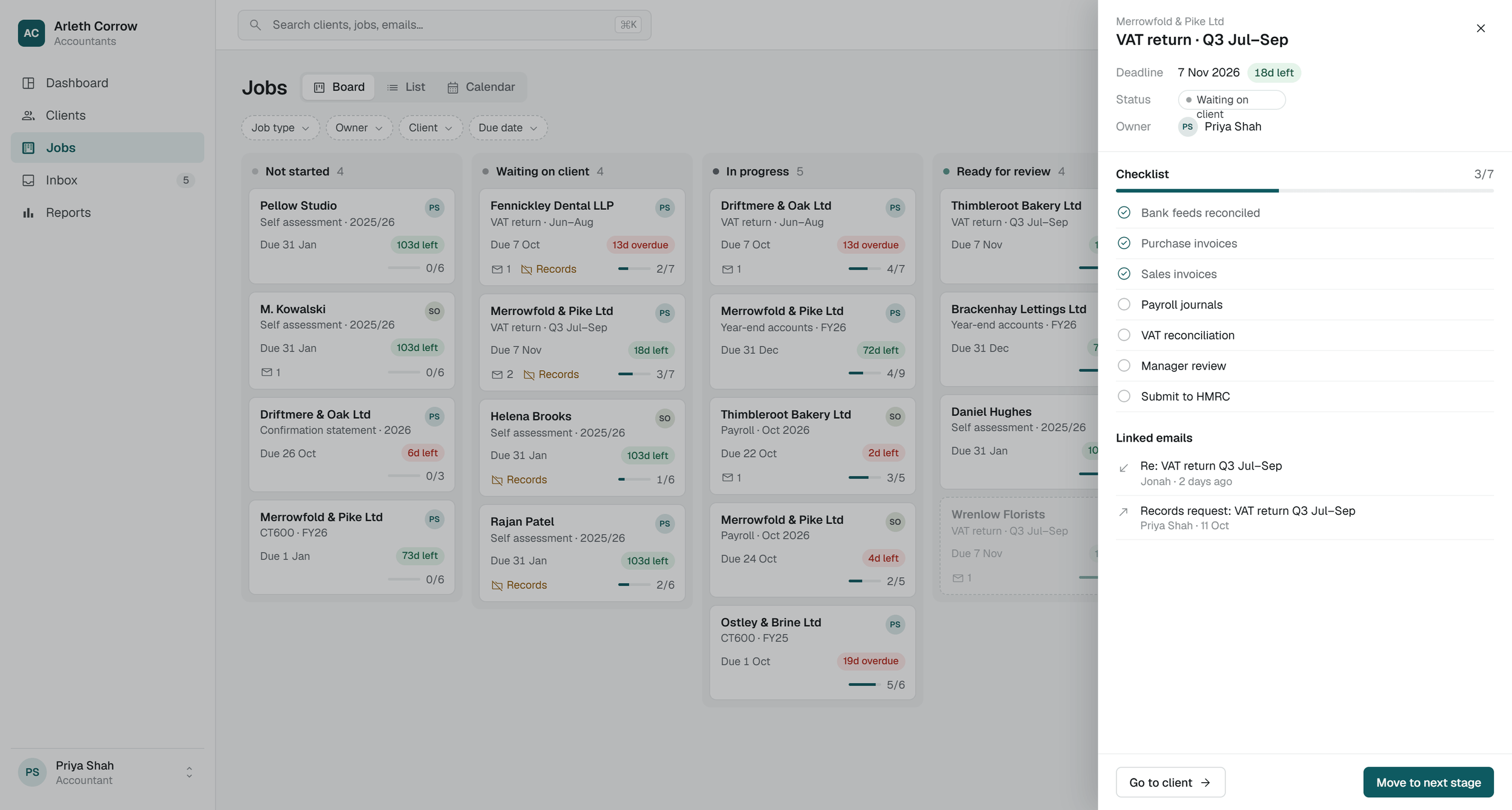
Opening the job keeps its checklist and related emails beside the board. The wider view and the individual task remain connected.
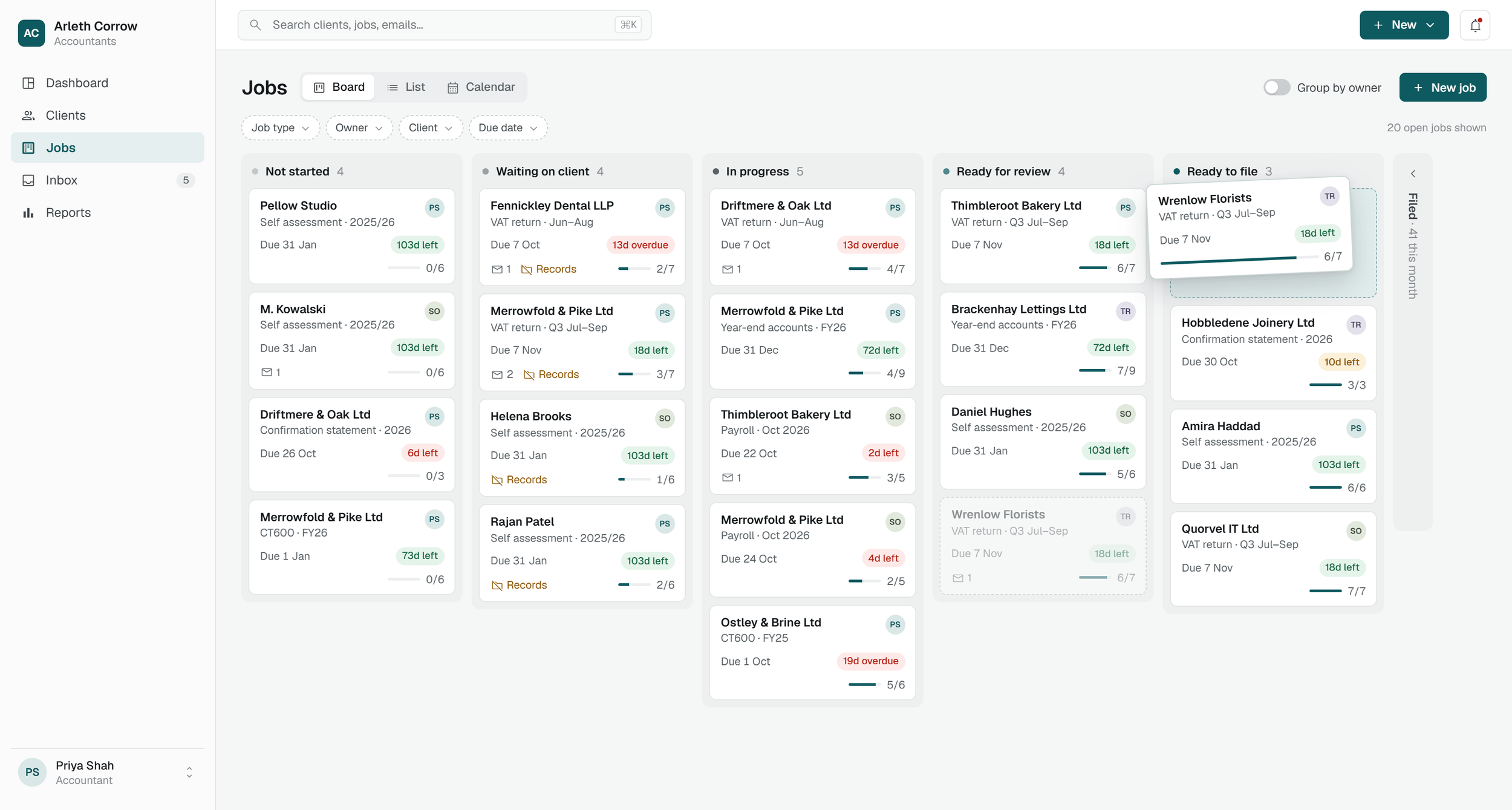
- Not startedWork to pick up.
- Waiting on clientInformation outstanding.
- In progressWork under way.
- Ready for reviewThe next handover.
- Ready to fileApproaching completion.
A handover with context.
A status alone cannot explain a job. The detail view shows the steps completed, the work still outstanding and the correspondence linked to it.
That is the information a colleague needs when taking over: a practical record of the work, with its next step in view.
The same practice.
A different perspective.
Accountants and partners work with the same practice, but the questions they need to answer differ. The reporting views reflect those responsibilities.
Accountants can see workload, approaching deadlines and outstanding records. The partner view adds commercial context through fees at risk, alongside the operational picture.
Amounts, names and reporting figures are anonymised screen content, not measurements of project results.
The detail belongs
with the work.
The design extends beyond task tracking. Correspondence, financial information and review steps also need a place in the client workflow.
These screens show how the application connects that detail to the person, client or job it concerns.
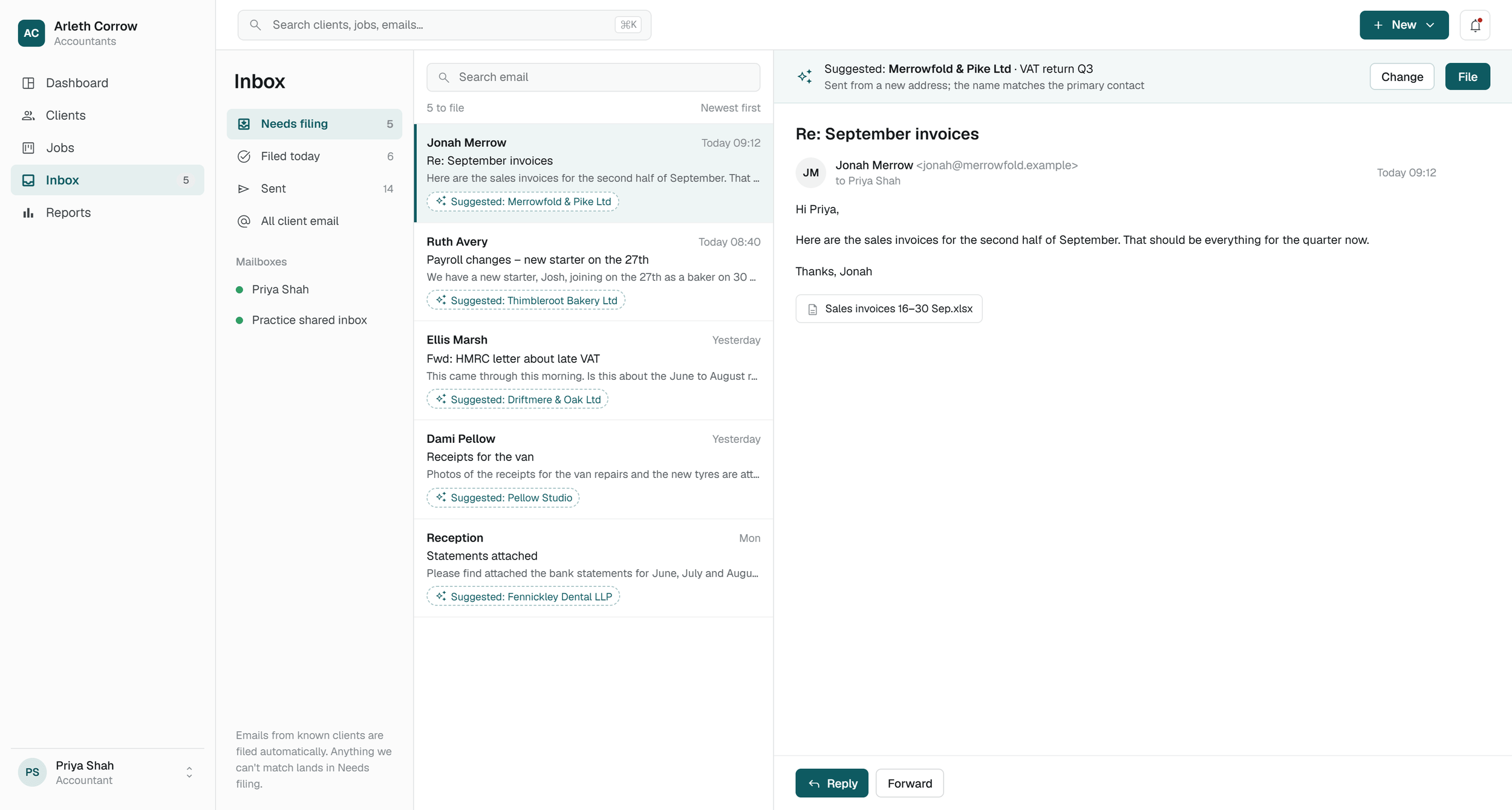
Correspondence in context.
The inbox design presents the message alongside its suggested client and job association. An accountant can review that association before filing the message.
The aim is to give correspondence a useful place in the shared record, so its context can follow the work.
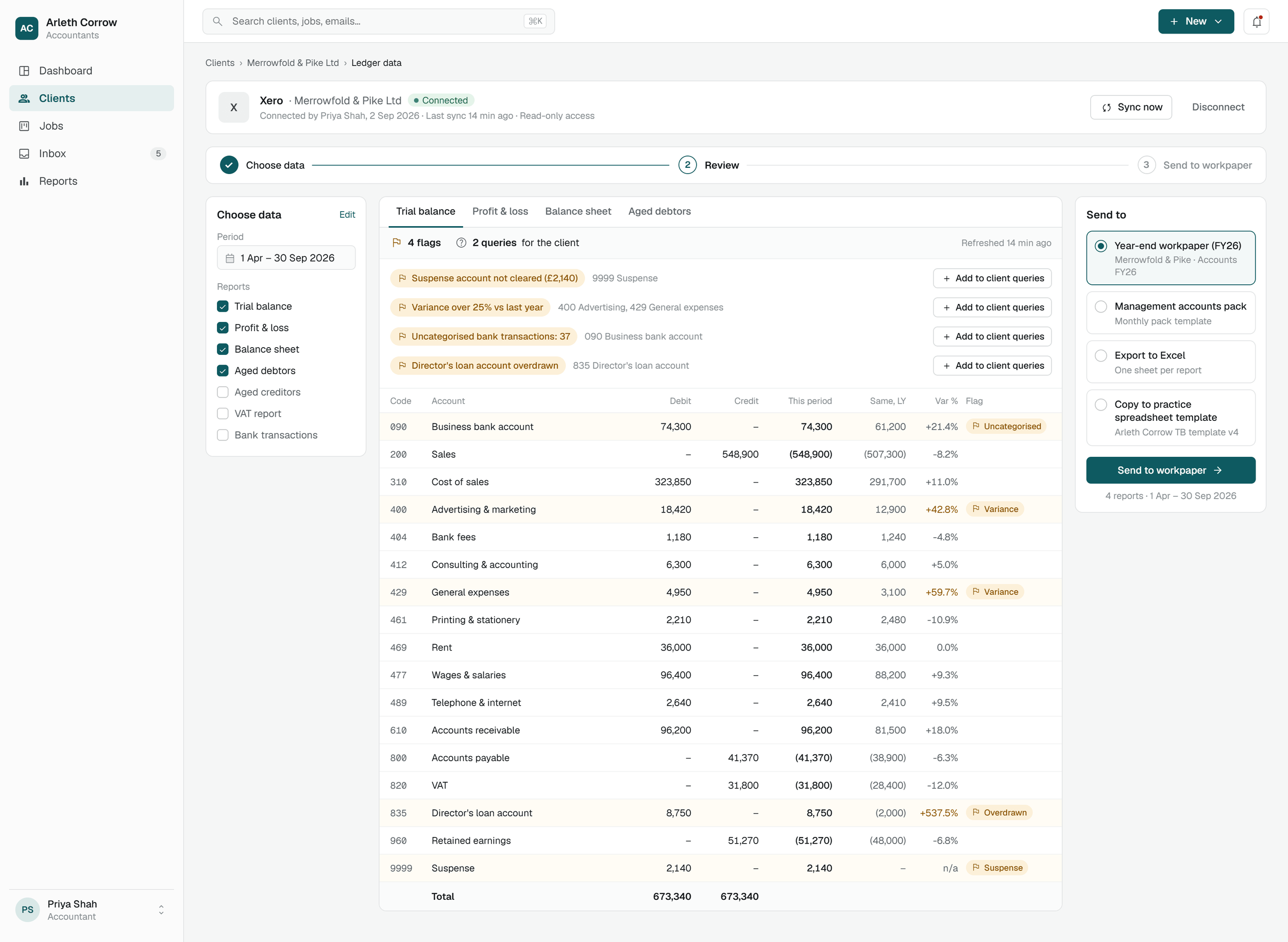
Review before the next step.
The ledger-review design brings selected reports, review flags, client queries and workpaper destinations into one sequence.
It keeps the information being examined beside the questions it raises and the next step in the work.
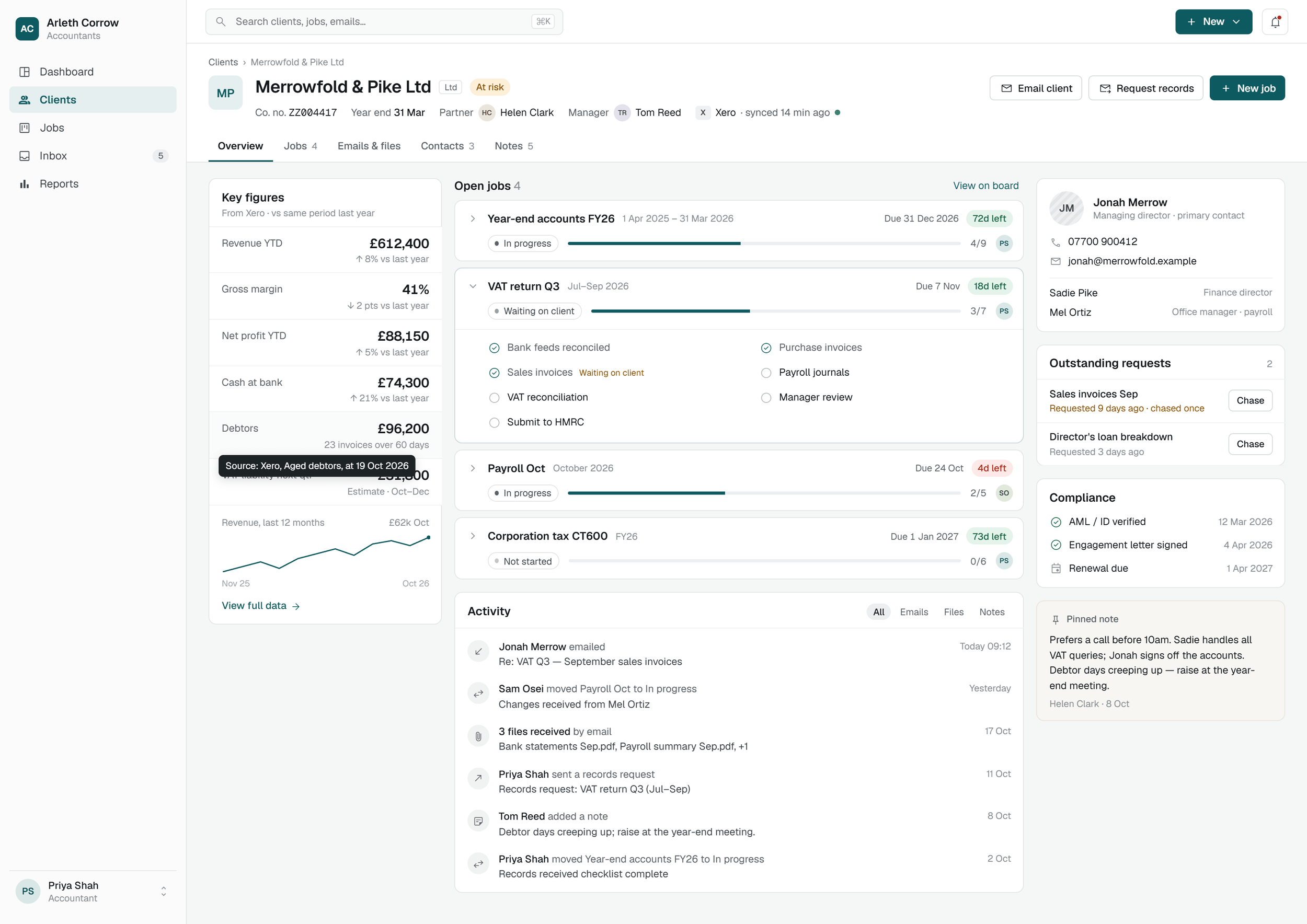
A closer look: where does a figure come from?
The workbench design makes the source report and date available beside a figure, giving the reader context for the number they are looking at.
“We are so happy with the new Complete Accounts Integration System. It's ticked off so many of our problems in running our business and is helping us operate in a much more streamlined way.”
From requirements to delivery.
Our team has been responsible for requirements gathering, UI design, architecture, development and delivery. The Windows application is currently going through testing with the firm.
A companion for the next stage.
A read-only mobile companion is in development. It will extend access to information beyond the Windows application; it is not part of the current release.
Your business.
Your next application.
You might have an idea for a new application, information spread across several tools, or an older system that needs a better future.
We build new software from the ground up and modernise existing applications. We start by understanding the work, the people and what you want to make possible.